When Stage Manager first launched, it looked pointless. Reading online comments, seemed that people couldn’t explain what problem the feature solved, and everyone I talked to ignored it. The common question was: “What does this do that macOS’s existing window tools can’t already do?”
Well, quite a few things.
Fewer gestures
With Mission Control, switching between multiple apps usually means:
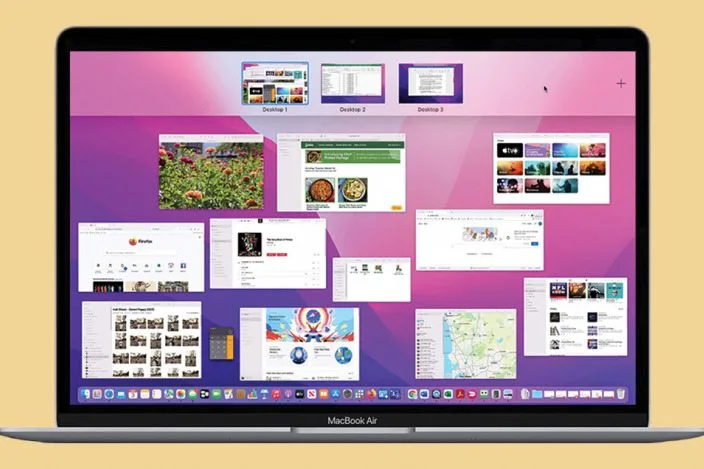
- Swipe up to enter Mission Control
- Scan a wall of thumbnails
- Click the right window
That’s two gestures plus a visual search. With Stage Manager, it’s one click. Your active app is centered, everything else sits in a predictable strip. No hunting around.
Compared with clicking icons on Dock, it’s fewer gestures but still worse, as you would have to look for the app among a (long) line of small icons.
Easier to “grab”
People might ask, “Isn’t that the same as clicking the Dock?” Not really:
- Mission Control thumbnails have fewer items and bigger targets → more pleasant to find the window and click on
- The Dock usually has a dozen small, identically-shaped icons → more noise, more cognitive load.
Stage Manager basically gives you the clarity of Mission Control, but persistent and one-click instead of a gesture sequence.
Consistency
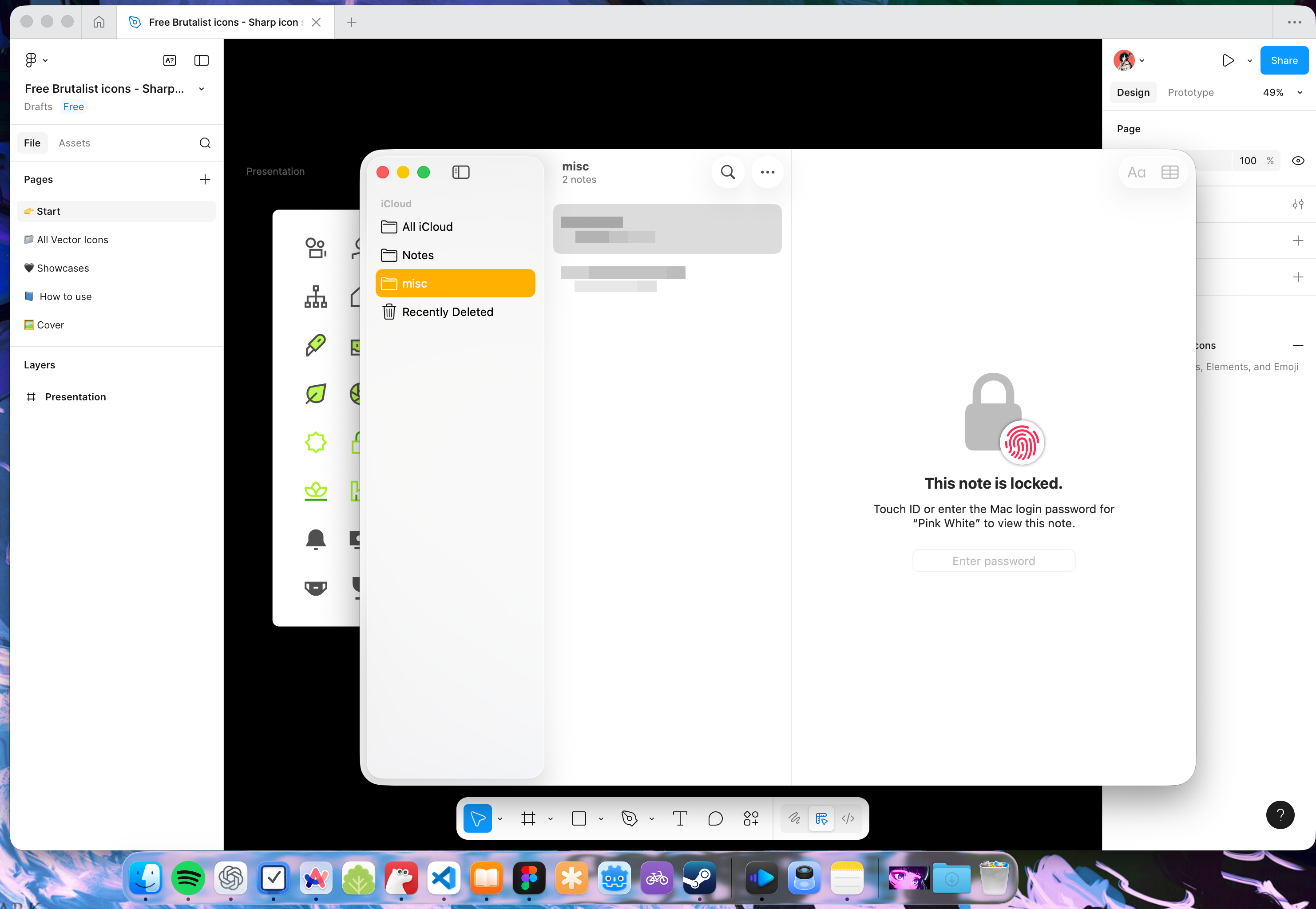
Take a simple setup: Figma + Notes. The previous workflow is inconsistent:
- To focus on Figma: click Figma → the Notes window disappears behind it
- To focus on Notes again, you either:
- Swipe into Mission Control and find the window, or
- Hunt for the Notes icon in the Dock
If you closed Notes earlier, you might forget having closed it, swipe up, not see it, and only then realize you need to relaunch it. Tiny frictions, but they stack up when you switch frequently.
Stage Manger replaces all that with one rule: look left, pick the app (and if you don’t see it on the left, that means you’ve closed it).
Visual clarity
Without Stage Manager: overlapping windows, hidden panes, visual clutter.
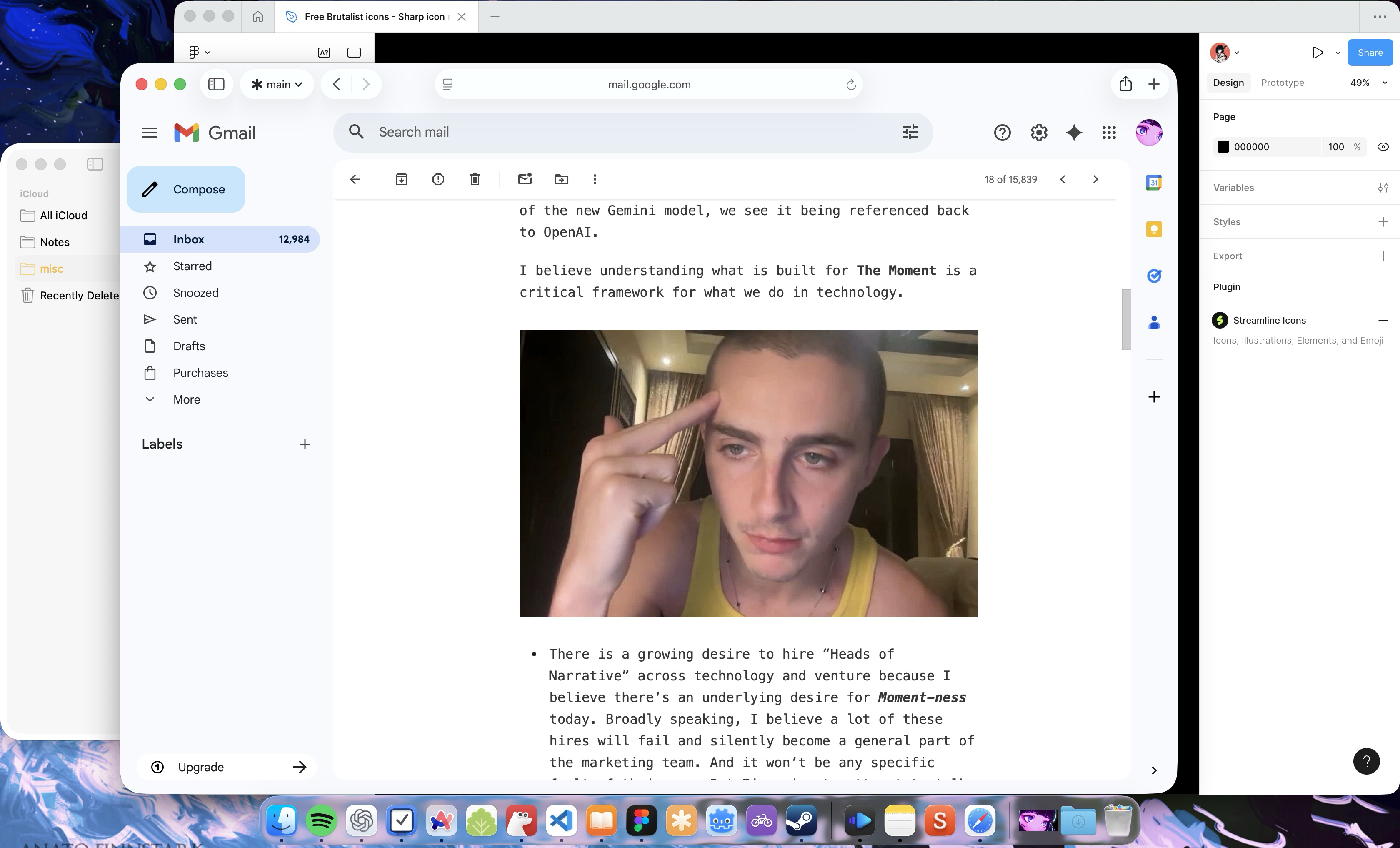
With it: each app or app set has a defined place. At a glance, you know what’s open and what context you’re in.
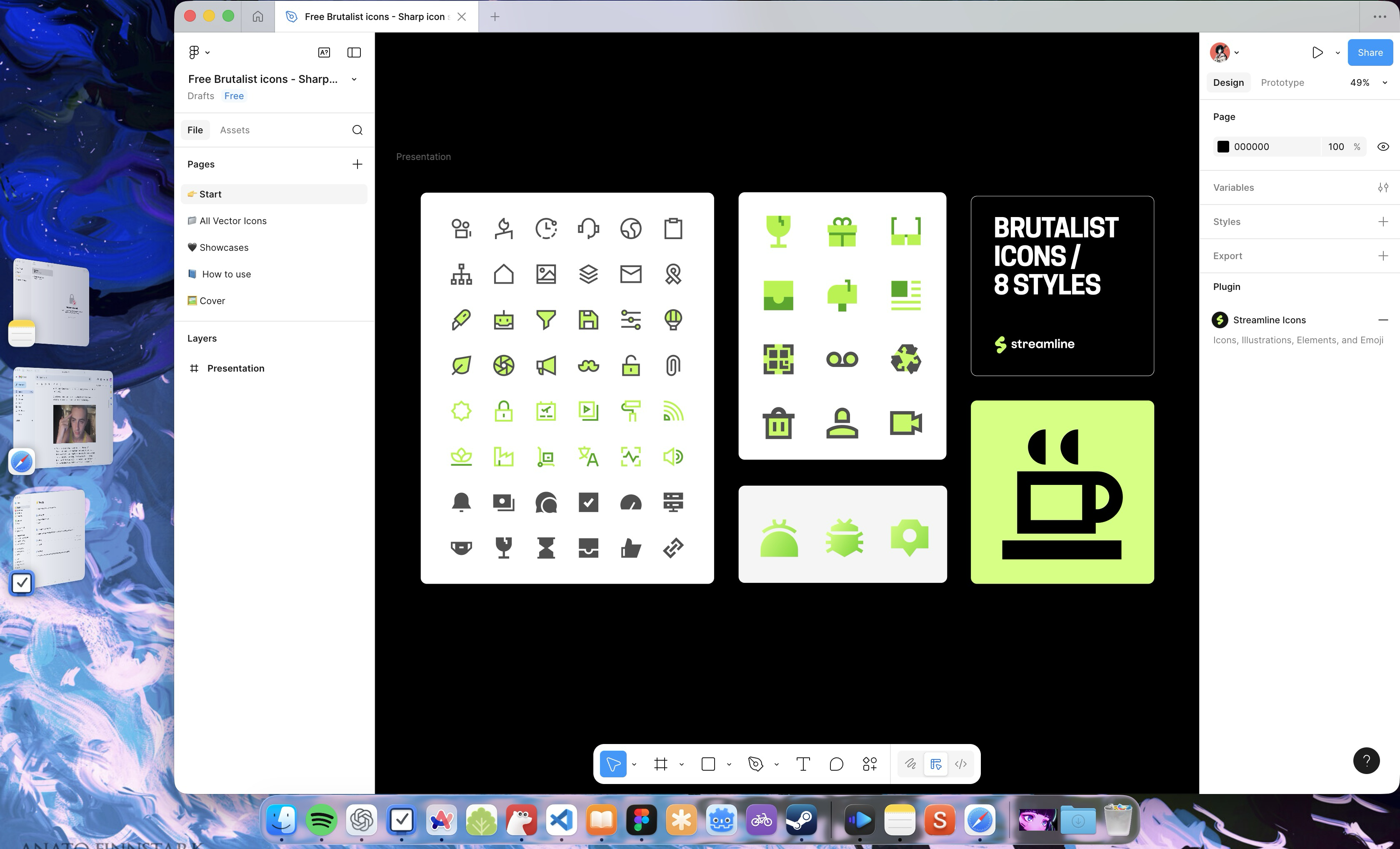
This is especially helpful if you’re juggling different workflows. A freelance designer, for example, might group:
- Design: Figma
- Inspiration: Notes, browser
- Comms: Slack, email, calendar
- Project management/Finance: Google Sheets, Trello
Yes, you could put each stack in its own desktop. But once you’re managing more than two, swiping left and right turns into a memory game: “Which desktop had Slack?” Stage Manger keeps these stacks persistent and instantly accessible.
Who is this for
If you’re a heavy keyboard navigator, or already using a third-party window manager, Stage Manager won’t mean much.
But for anyone juggling two or three workflows, who takes pleasure/annoyance in small design details, it’s good. The benefits are subtle — fewer gestures, fewer “Where did that window go?” moments, a cleaner mental model — but once you feel them, it really makes a difference.